SOPS: Secrets OPerationS
Introduction
SOPS is an editor of encrypted files that supports YAML, JSON, ENV,
INI and BINARY formats and encrypts with AWS KMS, GCP KMS, Azure Key
Vault, HuaweiCloud KMS, age, and PGP.
(demo)


Backward compatibility
SOPS will remain backward compatible on the major version, meaning that
all improvements brought to the 1.X and 2.X branches (current) will
maintain the file format introduced in 1.0.
License
Mozilla Public License Version 2.0
Authors
SOPS was initially launched as a project at Mozilla in 2015 and has been
graciously donated to the CNCF as a Sandbox project in 2023, now under
the stewardship of a new group of
maintainers.
The original authors of the project were:
- Adrian Utrilla @autrilla
- Julien Vehent @jvehent
Furthermore, the project has been carried for a long time by AJ Bahnken
@ajvb, and had not been possible without the contributions of numerous
contributors.
Credits
SOPS was inspired by
hiera-eyaml,
credstash,
sneaker, password
store and too many years managing PGP
encrypted files by hand...


We are a Cloud Native Computing Foundation sandbox project.
1 - Installation
How to install SOPS, or build it from source
Stable release
Binaries and packages of the latest stable release are available at
https://github.com/getsops/sops/releases.
Development branch
For the adventurous, unstable features are available in the
main branch, which you can install from source:
$ mkdir -p $GOPATH/src/github.com/getsops/sops/
$ git clone https://github.com/getsops/sops.git $GOPATH/src/github.com/getsops/sops/
$ cd $GOPATH/src/github.com/getsops/sops/
$ make install
(requires Go >= 1.25)
If you don't have Go installed, set it up with:
$ {apt,yum,brew} install golang
$ echo 'export GOPATH=~/go' >> ~/.bashrc
$ source ~/.bashrc
$ mkdir $GOPATH
Or whatever variation of the above fits your system and shell.
To use SOPS as a library, take a look at the decrypt
package.
2 - Usage
How to use SOPS.
2.1 - First steps
First steps with SOPS.
First steps
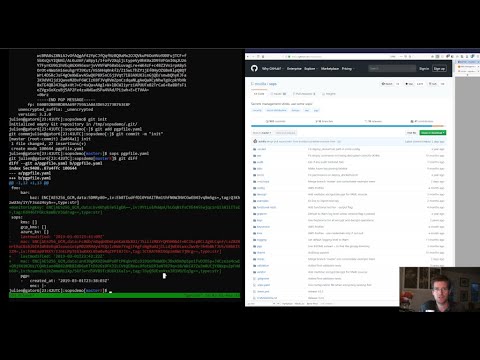
For a quick presentation of SOPS, check out this Youtube tutorial:
If you're using AWS KMS, create one or multiple master keys in the IAM
console and export them, comma separated, in the SOPS_KMS_ARN env
variable. It is recommended to use at least two master keys in different
regions.
export SOPS_KMS_ARN="arn:aws:kms:us-east-1:656532927350:key/920aff2e-c5f1-4040-943a-047fa387b27e,arn:aws:kms:ap-southeast-1:656532927350:key/9006a8aa-0fa6-4c14-930e-a2dfb916de1d"
SOPS uses aws-sdk-go-v2 to
communicate with AWS KMS. It will automatically read the credentials
from the ~/.aws/credentials file which can be created with the
aws configure command.
An example of the ~/.aws/credentials file is shown below:
$ cat ~/.aws/credentials
[default]
aws_access_key_id = AKI.....
aws_secret_access_key = mw......
In addition to the ~/.aws/credentials file, you can also use the
AWS_ACCESS_KEY_ID and AWS_SECRET_ACCESS_KEY environment variables to
specify your credentials:
export AWS_ACCESS_KEY_ID="AKI......"
export AWS_SECRET_ACCESS_KEY="mw......"
For more information and additional environment variables, see
specifying
credentials.
If you want to use PGP, export the fingerprints of the public keys,
comma separated, in the SOPS_PGP_FP env variable.
export SOPS_PGP_FP="85D77543B3D624B63CEA9E6DBC17301B491B3F21,E60892BB9BD89A69F759A1A0A3D652173B763E8F"
📝 Note
You can use both PGP and KMS simultaneously.
Then simply call sops edit with a file path as argument. It will
handle the encryption/decryption transparently and open the cleartext
file in an editor
$ sops edit mynewtestfile.yaml
mynewtestfile.yaml doesn't exist, creating it.
please wait while an encryption key is being generated and stored in a secure fashion
file written to mynewtestfile.yaml
Editing will happen in whatever $SOPS_EDITOR or $EDITOR is set to,
or, if it’s not set, in vim, nano, or vi.
Keep in mind that SOPS will wait for the editor to exit,
and then try to reencrypt the file. Some GUI editors (atom, sublime)
spawn a child process and then exit immediately. They usually have an
option to wait for the main editor window to be closed before exiting.
See #127 for more
information.
The resulting encrypted file looks like this:
myapp1: ENC[AES256_GCM,data:Tr7o=,iv:1=,aad:No=,tag:k=]
app2:
    db:
        user: ENC[AES256_GCM,data:CwE4O1s=,iv:2k=,aad:o=,tag:w==]
        password: ENC[AES256_GCM,data:p673w==,iv:YY=,aad:UQ=,tag:A=]
    # private key for secret operations in app2
    key: |-
        ENC[AES256_GCM,data:Ea3kL5O5U8=,iv:DM=,aad:FKA=,tag:EA==]
an_array:
    - ENC[AES256_GCM,data:v8jQ=,iv:HBE=,aad:21c=,tag:gA==]
    - ENC[AES256_GCM,data:X10=,iv:o8=,aad:CQ=,tag:Hw==]
    - ENC[AES256_GCM,data:KN=,iv:160=,aad:fI4=,tag:tNw==]
sops:
    kms:
        - created_at: 1441570389.775376
          enc: CiC....Pm1Hm
          arn: arn:aws:kms:us-east-1:656532927350:key/920aff2e-c5f1-4040-943a-047fa387b27e
        - created_at: 1441570391.925734
          enc: Ci...awNx
          arn: arn:aws:kms:ap-southeast-1:656532927350:key/9006a8aa-0fa6-4c14-930e-a2dfb916de1d
    pgp:
        - fp: 85D77543B3D624B63CEA9E6DBC17301B491B3F21
          created_at: 1441570391.930042
          enc: |
              -----BEGIN PGP MESSAGE-----
              hQIMA0t4uZHfl9qgAQ//UvGAwGePyHuf2/zayWcloGaDs0MzI+zw6CmXvMRNPUsA
              ...=oJgS
              -----END PGP MESSAGE-----
A copy of the encryption/decryption key is stored securely in each KMS
and PGP block. As long as one of the KMS or PGP method is still usable,
you will be able to access your data.
To decrypt a file in a cat fashion, use the -d flag:
$ sops decrypt mynewtestfile.yaml
SOPS encrypted files contain the necessary information to decrypt their
content. All a user of SOPS needs is valid AWS credentials and the
necessary permissions on KMS keys.
Given that, the only command a SOPS user needs is:
<file> will be opened, decrypted, passed to a text
editor (vim by default), encrypted if modified, and saved back to its
original location. All of these steps, apart from the actual editing,
are transparent to the user.
The order in which available decryption methods are tried can be
specified with --decryption-order option or SOPS_DECRYPTION_ORDER
environment variable as a comma separated list. The default order is
age,pgp. Offline methods are tried first and then the remaining ones.
2.2 - Identities
SOPS supports PGP, age, various KMSes, and key groups to give access to SOPS encrypted files.
2.2.1 - PGP / GnuPG
You can use PGP / GnuPG to encrypt data.
Test with the dev PGP key
If you want to test SOPS without having to do a bunch of setup, you
can use the example files and pgp key provided with the repository:
$ git clone https://github.com/getsops/sops.git
$ cd sops
$ gpg --import pgp/sops_functional_tests_key.asc
$ sops edit example.yaml
This last step will decrypt example.yaml using the test private key.
Encrypting with GnuPG subkeys
If you want to encrypt with specific GnuPG subkeys, it does not suffice to provide the
exact key ID of the subkey to SOPS, since GnuPG might use another subkey instead
to encrypt the file key with. To force GnuPG to use a specific subkey, you need to
append ! to the key’s fingerprint.
creation_rules:
    - pgp: >-
        85D77543B3D624B63CEA9E6DBC17301B491B3F21!,
        E60892BB9BD89A69F759A1A0A3D652173B763E8F!
Please note that this is only passed on correctly to GnuPG since SOPS 3.9.3.
Specify a different GPG executable
SOPS checks for the SOPS_GPG_EXEC environment variable. If specified,
it will attempt to use the executable set there instead of the default
of gpg.
Example: place the following in your ~/.bashrc
SOPS_GPG_EXEC = 'your_gpg_client_wrapper'
2.2.2 - Age
You can use age keys to encrypt data.
Encrypting using age
age is a simple, modern, and secure tool
for encrypting files. It's recommended to use age over PGP, if
possible.
You can encrypt a file for one or more age recipients (comma separated)
using the --age option or the SOPS_AGE_RECIPIENTS environment
variable:
$ sops encrypt --age age1yt3tfqlfrwdwx0z0ynwplcr6qxcxfaqycuprpmy89nr83ltx74tqdpszlw test.yaml > test.enc.yaml
When decrypting a file with the corresponding identity, SOPS will look
for a text file name keys.txt located in a sops subdirectory of your
user configuration directory.
Linux
- Looks for
keys.txt in $XDG_CONFIG_HOME/sops/age/keys.txt; - Falls back to
$HOME/.config/sops/age/keys.txt if $XDG_CONFIG_HOME isn’t set.
macOS
- Looks for
keys.txt in $XDG_CONFIG_HOME/sops/age/keys.txt; - Falls back to
$HOME/Library/Application Support/sops/age/keys.txt if $XDG_CONFIG_HOME isn’t set.
Windows
- Looks for
keys.txt in %AppData%\\sops\\age\\keys.txt.
You can override the default lookup by:
- setting the environment variable SOPS_AGE_KEY_FILE;
- setting the SOPS_AGE_KEY environment variable;
- providing a command to output the age keys by setting the SOPS_AGE_KEY_CMD environment variable.
This command can read the age recipient for which to return the private key from the SOPS_AGE_RECIPIENT environment variable.
The contents of this key file should be a list of age X25519 identities,
one per line. Lines beginning with # are considered comments and
ignored. Each identity will be tried in sequence until one is able to
decrypt the data.
Encrypting with SSH keys via age is also supported by SOPS.
You can use SSH public keys (ssh-ed25519 AAAA..., ssh-rsa AAAA...)
as age recipients when encrypting a file.
When decrypting a file, SOPS will attempt to source the SSH private key as follows:
Note that only ssh-rsa and ssh-ed25519 are supported.
A list of age recipients can be added to the .sops.yaml:
creation_rules:
    - age: >-
        age1s3cqcks5genc6ru8chl0hkkd04zmxvczsvdxq99ekffe4gmvjpzsedk23c,
        age1qe5lxzzeppw5k79vxn3872272sgy224g2nzqlzy3uljs84say3yqgvd0sw
It is also possible to use updatekeys, when adding or removing age recipients. For example:
$ sops updatekeys secret.enc.yaml
2022/02/09 16:32:02 Syncing keys for file /iac/solution1/secret.enc.yaml
The following changes will be made to the file's groups:
Group 1
    age1s3cqcks5genc6ru8chl0hkkd04zmxvczsvdxq99ekffe4gmvjpzsedk23c
+++ age1qe5lxzzeppw5k79vxn3872272sgy224g2nzqlzy3uljs84say3yqgvd0sw
Is this okay? (y/n):y
2022/02/09 16:32:04 File /iac/solution1/secret.enc.yaml synced with new keys
2.2.3 - Amazon AWS KMS
You can use Amazon AWS’ KMS to encrypt data.
KMS AWS Profiles
If you want to use a specific profile, you can do so with
`aws_profile`:
sops:
    kms:
        - arn: arn:aws:kms:us-east-1:656532927350:key/920aff2e-c5f1-4040-943a-047fa387b27e
          aws_profile: foo
If no AWS profile is set, default credentials will be used.
Similarly the --aws-profile flag can be set with the
command line with any of the KMS commands.
Assuming roles and using KMS in various AWS accounts
SOPS has the ability to use KMS in multiple AWS accounts by assuming
roles in each account. Being able to assume roles is a nice feature of
AWS that allows administrators to establish trust relationships between
accounts, typically from the most secure account to the least secure
one. In our use-case, we use roles to indicate that a user of the Master
AWS account is allowed to make use of KMS master keys in development and
staging AWS accounts. Using roles, a single file can be encrypted with
KMS keys in multiple accounts, thus increasing reliability and ease of
use.
You can use keys in various accounts by tying each KMS master key to a
role that the user is allowed to assume in each account. The IAM
roles
documentation has full details on how this needs to be configured on
AWS's side.
From the point of view of SOPS, you only need to specify the role a KMS
key must assume alongside its ARN, as follows:
sops:
    kms:
        - arn: arn:aws:kms:us-east-1:656532927350:key/920aff2e-c5f1-4040-943a-047fa387b27e
          role: arn:aws:iam::927034868273:role/sops-dev-xyz
The role must have permission to call Encrypt and Decrypt using KMS. An
example policy is shown below.
{
  "Sid": "Allow use of the key",
  "Effect": "Allow",
  "Action": [
    "kms:Encrypt",
    "kms:Decrypt",
    "kms:ReEncrypt*",
    "kms:GenerateDataKey*",
    "kms:DescribeKey"
  ],
  "Resource": "*",
  "Principal": {
    "AWS": [
      "arn:aws:iam::927034868273:role/sops-dev-xyz"
    ]
  }
}
You can specify a role in the --kms flag and SOPS_KMS_ARN variable
by appending it to the ARN of the master key, separated by a + sign:
<KMS ARN>+<ROLE ARN>
arn:aws:kms:us-west-2:927034868273:key/fe86dd69-4132-404c-ab86-4269956b4500+arn:aws:iam::927034868273:role/sops-dev-xyz
AWS KMS Encryption Context
SOPS has the ability to use AWS KMS key policy and encryption
context
to refine the access control of a given KMS master key.
When creating a new file, you can specify the encryption context in the
--encryption-context flag by comma separated list of key-value pairs:
$ sops edit --encryption-context Environment:production,Role:web-server test.dev.yaml
The format of the Encrypt Context string is
<EncryptionContext Key>:<EncryptionContext Value>,<EncryptionContext Key>:<EncryptionContext Value>,...
The encryption context will be stored in the file metadata and does not
need to be provided at decryption.
Encryption contexts can be used in conjunction with KMS Key Policies to
define roles that can only access a given context. An example policy is
shown below:
{
  "Effect": "Allow",
  "Principal": {
    "AWS": "arn:aws:iam::111122223333:role/RoleForExampleApp"
  },
  "Action": "kms:Decrypt",
  "Resource": "*",
  "Condition": {
    "StringEquals": {
      "kms:EncryptionContext:AppName": "ExampleApp",
      "kms:EncryptionContext:FilePath": "/var/opt/secrets/"
    }
  }
}
2.2.4 - Azure KMS
You can use Azure’s KMS to encrypt data.
Encrypting using Azure Key Vault
The Azure Key Vault integration uses the default credential
chain
which tries several authentication methods, in this order:
Environment
credentials
- Service Principal with Client Secret
- Service Principal with Certificate
- User with username and password
- Configuration for multi-tenant applications
Workload Identity
credentials
Managed Identity
credentials
Azure CLI
credentials
For example, you can use a Service Principal with the following
environment variables:
AZURE_TENANT_ID
AZURE_CLIENT_ID
AZURE_CLIENT_SECRET
You can create a Service Principal using the CLI like this:
$ az ad sp create-for-rbac -n my-keyvault-sp

{
    "appId": "<some-uuid>",
    "displayName": "my-keyvault-sp",
    "name": "http://my-keyvault-sp",
    "password": "<random-string>",
    "tenant": "<tenant-uuid>"
}
The appId is the client ID, and the password
is the client secret.
Encrypting/decrypting with Azure Key Vault requires the resource
identifier for a key. This has the following form:
https://${VAULT_URL}/keys/${KEY_NAME}/${KEY_VERSION}
You can omit the version, and have just a trailing slash, and this will use
whatever the latest version of the key is:
https://${VAULT_URL}/keys/${KEY_NAME}/
To create a Key Vault and assign your service principal permissions on
it from the commandline:
# Create a resource group if you do not have one:
$ az group create --name sops-rg --location westeurope
# Key Vault names are globally unique, so generate one:
$ keyvault_name=sops-$(uuidgen | tr -d - | head -c 16)
# Create a Vault, a key, and give the service principal access:
$ az keyvault create --name $keyvault_name --resource-group sops-rg --location westeurope
$ az keyvault key create --name sops-key --vault-name $keyvault_name --protection software --ops encrypt decrypt
$ az keyvault set-policy --name $keyvault_name --resource-group sops-rg --spn $AZURE_CLIENT_ID \
    --key-permissions get encrypt decrypt
# Read the key id:
$ az keyvault key show --name sops-key --vault-name $keyvault_name --query key.kid

https://sops.vault.azure.net/keys/sops-key/some-string
📝 Note
The get key permission is required when the key version is ommited (for example if the URL ends with a trailing slash).
In that case SOPS calls the Azure Key Vault API to resolve the latest key version, which requires the get permission.
If you specifty an explicit key version in the URL you can omit get, but this means you will need to update your configuration every time the key is rotated.
Now you can encrypt a file using:
$ sops encrypt --azure-kv https://sops.vault.azure.net/keys/sops-key/some-string test.yaml > test.enc.yaml
or, without the version:
$ sops encrypt --azure-kv https://sops.vault.azure.net/keys/sops-key/ test.yaml > test.enc.yaml
And decrypt it using:
$ sops decrypt test.enc.yaml
2.2.5 - Google Cloud KMS
You can use Google Cloud’s KMS to encrypt data.
Encrypting using GCP KMS
GCP KMS has support for authorization with the use of
Application Default Credentials
and using an OAuth 2.0 token. Application default credentials precedes
the use of access token.
Using Application Default Credentials you can authorize by doing this:
you can enable application default credentials using the sdk:
$ gcloud auth application-default login
Using OAauth tokens you can authorize by doing this:
$ export GOOGLE_OAUTH_ACCESS_TOKEN=<your access token>
Or if you are logged in you can authorize by generating an access token:
$ export GOOGLE_OAUTH_ACCESS_TOKEN="$(gcloud auth print-access-token)"
By default, SOPS uses the gRPC client to communicate with GCP KMS. You can optionally
switch to the REST client by setting the SOPS_GCP_KMS_CLIENT_TYPE environment variable:
$ export SOPS_GCP_KMS_CLIENT_TYPE=rest  # Use REST client
$ export SOPS_GCP_KMS_CLIENT_TYPE=grpc  # Use gRPC client (default)
For sovereign cloud environments that expose a GCP-compatible KMS API at a
non-standard endpoint (e.g. S3NS/Thales TPC: cloudkms.s3nsapis.fr),
you can override the endpoint or the universe domain:
# Override the KMS endpoint directly
$ export SOPS_GCP_KMS_ENDPOINT=cloudkms.example.com:443

# Or derive the endpoint from the universe domain (cloudkms.<domain>:443)
$ export SOPS_GCP_KMS_UNIVERSE_DOMAIN=example.com
📝 Note
SOPS_GCP_KMS_ENDPOINT takes precedence over SOPS_GCP_KMS_UNIVERSE_DOMAIN if both are set.
Encrypting/decrypting with GCP KMS requires a KMS ResourceID. You can
use the cloud console the get the ResourceID or you can create one using
the gcloud sdk:
$ gcloud kms keyrings create sops --location global
$ gcloud kms keys create sops-key --location global --keyring sops --purpose encryption
$ gcloud kms keys list --location global --keyring sops

# you should see
NAME                                                                   PURPOSE          PRIMARY_STATE
projects/my-project/locations/global/keyRings/sops/cryptoKeys/sops-key ENCRYPT_DECRYPT  ENABLED
Now you can encrypt a file using:
$ sops encrypt --gcp-kms projects/my-project/locations/global/keyRings/sops/cryptoKeys/sops-key test.yaml > test.enc.yaml
And decrypt it using:
$ sops decrypt test.enc.yaml
2.2.6 - HashiCorp Vault / OpenBao
You can use HashiCorp Vault or OpenBao to encrypt data.
Encrypting using Hashicorp Vault
We assume you have an instance (or more) of Vault running and you have
privileged access to it. For instructions on how to deploy a secure
instance of Vault, refer to Hashicorp's official documentation.
To easily deploy Vault locally: (DO NOT DO THIS FOR PRODUCTION!!!)
$ docker run -d -p8200:8200 vault:1.2.0 server -dev -dev-root-token-id=toor
$ # Substitute this with the address Vault is running on
$ export VAULT_ADDR=http://127.0.0.1:8200

$ # this may not be necessary in case you previously used `vault login` for production use
$ export VAULT_TOKEN=toor

$ # to check if Vault started and is configured correctly
$ vault status
Key             Value
---             -----
Seal Type       shamir
Initialized     true
Sealed          false
Total Shares    1
Threshold       1
Version         1.2.0
Cluster Name    vault-cluster-618cc902
Cluster ID      e532e461-e8f0-1352-8a41-fc7c11096908
HA Enabled      false

$ # It is required to enable a transit engine if not already done (It is suggested to create a transit engine specifically for SOPS, in which it is possible to have multiple keys with various permission levels)
$ vault secrets enable -path=sops transit
Success! Enabled the transit secrets engine at: sops/

$ # Then create one or more keys
$ vault write sops/keys/firstkey type=rsa-4096
Success! Data written to: sops/keys/firstkey

$ vault write sops/keys/secondkey type=rsa-2048
Success! Data written to: sops/keys/secondkey

$ vault write sops/keys/thirdkey type=chacha20-poly1305
Success! Data written to: sops/keys/thirdkey

$ sops encrypt --hc-vault-transit $VAULT_ADDR/v1/sops/keys/firstkey vault_example.yml

$ cat <<EOF > .sops.yaml
creation_rules:
    - path_regex: \.dev\.yaml$
      hc_vault_transit_uri: "$VAULT_ADDR/v1/sops/keys/secondkey"
    - path_regex: \.prod\.yaml$
      hc_vault_transit_uri: "$VAULT_ADDR/v1/sops/keys/thirdkey"
EOF

$ sops encrypt --verbose prod/raw.yaml > prod/encrypted.yaml
Restricting HC Vault servers that SOPS can talk to
If you want to restrict which HC Vault servers SOPS is allowed to talk to, you can set the SOPS_HC_VAULT_ALLOWLIST environment variable.
When set to all (the default value), there is no restriction.
When set to none, SOPS will not allow any access to HC Vault servers for decryption or encryption.
When set to any other value, this value will be interpreted as a comma-separated list of strings.
If SOPS attempts to contact a vault URL that starts with one of these strings, SOPS will attempt to contact that URL.
If there is no matching prefix in SOPS_HC_VAULT_ALLOWLIST, SOPS will not contact that URL.
2.2.7 - HuaweiCloud KMS
You can use HuaweiCloud’s KMS to encrypt data.
Encrypting using HuaweiCloud KMS
The HuaweiCloud KMS integration uses the
default credential provider chain
which tries several authentication methods, in this order:
- Environment variables:
HUAWEICLOUD_SDK_AK, HUAWEICLOUD_SDK_SK, HUAWEICLOUD_SDK_PROJECT_ID - Credentials file at
~/.huaweicloud/credentials - Instance metadata (when running on HuaweiCloud instances)
For example, you can use environment variables:
export HUAWEICLOUD_SDK_AK="your-access-key"
export HUAWEICLOUD_SDK_SK="your-secret-key"
export HUAWEICLOUD_SDK_PROJECT_ID="your-project-id"
Alternatively, you can create a credentials file at ~/.huaweicloud/credentials:
$ cat ~/.huaweicloud/credentials
[default]
ak = your-access-key
sk = your-secret-key
project_id = your-project-id
Encrypting/decrypting with HuaweiCloud KMS requires a KMS key ID in the format
region:key-uuid. You can get the key ID from the HuaweiCloud console or using
the HuaweiCloud API. The key ID format is region:key-uuid where:
region is the HuaweiCloud region (e.g., tr-west-1, cn-north-1)key-uuid is the UUID of the KMS key (e.g., abc12345-6789-0123-4567-890123456789)
Now you can encrypt a file using:
$ sops encrypt --hckms tr-west-1:abc12345-6789-0123-4567-890123456789 test.yaml > test.enc.yaml
Or using the environment variable:
$ export SOPS_HUAWEICLOUD_KMS_IDS="tr-west-1:abc12345-6789-0123-4567-890123456789"
$ sops encrypt test.yaml > test.enc.yaml
And decrypt it using:
$ sops decrypt test.enc.yaml
You can also configure HuaweiCloud KMS keys in the .sops.yaml config file:
creation_rules:
    - path_regex: \.hckms\.yaml$
      hckms:
        - tr-west-1:abc12345-6789-0123-4567-890123456789,tr-west-2:def67890-1234-5678-9012-345678901234
2.2.8 - Key groups
Key groups allow to require multiple identities together to edit or decrypt a file.
Key groups
By default, SOPS encrypts the data key for a file with each of the
master keys, such that if any of the master keys is available, the file
can be decrypted. However, it is sometimes desirable to require access
to multiple master keys in order to decrypt files. This can be achieved
with key groups.
When using key groups in SOPS, data keys are split into parts such that
keys from multiple groups are required to decrypt a file. SOPS uses
Shamir's Secret Sharing to split the data key such that each key group
has a fragment, each key in the key group can decrypt that fragment, and
a configurable number of fragments (threshold) are needed to decrypt and
piece together the complete data key. When decrypting a file using
multiple key groups, SOPS goes through key groups in order, and in each
group, tries to recover the fragment of the data key using a master key
from that group. Once the fragment is recovered, SOPS moves on to the
next group, until enough fragments have been recovered to obtain the
complete data key.
By default, the threshold is set to the number of key groups. For
example, if you have three key groups configured in your SOPS file and
you don't override the default threshold, then one master key from each
of the three groups will be required to decrypt the file.
Management of key groups is done with the sops groups command.
For example, you can add a new key group with 3 PGP keys and 3 KMS keys
to the file my_file.yaml:
$ sops groups add --file my_file.yaml --pgp fingerprint1 --pgp fingerprint2 --pgp fingerprint3 --kms arn1 --kms arn2 --kms arn3
Or you can delete the 1st group (group number 0, as groups are
zero-indexed) from my_file.yaml:
$ sops groups delete --file my_file.yaml 0
Key groups can also be specified in the .sops.yaml config file, like
so:
creation_rules:
    - path_regex: .*keygroups.*
      key_groups:
          # First key group
          - pgp:
                - fingerprint1
                - fingerprint2
            kms:
                - arn: arn1
                  role: role1
                  context:
                      foo: bar
                - arn: arn2
                  aws_profile: myprofile
          # Second key group
          - pgp:
                - fingerprint3
                - fingerprint4
            kms:
                - arn: arn3
                - arn: arn4
          # Third key group
          - pgp:
                - fingerprint5
Given this configuration, we can create a new encrypted file like we
normally would, and optionally provide the
--shamir-secret-sharing-threshold command line flag if we want to
override the default threshold. SOPS will then split the data key into
three parts (from the number of key groups) and encrypt each fragment
with the master keys found in each group.
For example:
$ sops edit --shamir-secret-sharing-threshold 2 example.json
Alternatively, you can configure the Shamir threshold for each creation
rule in the .sops.yaml config with shamir_threshold:
creation_rules:
    - path_regex: .*keygroups.*
      shamir_threshold: 2
      key_groups:
          # First key group
          - pgp:
                - fingerprint1
                - fingerprint2
            kms:
                - arn: arn1
                  role: role1
                  context:
                      foo: bar
                - arn: arn2
                  aws_profile: myprofile
          # Second key group
          - pgp:
                - fingerprint3
                - fingerprint4
            kms:
                - arn: arn3
                - arn: arn4
          # Third key group
          - pgp:
                - fingerprint5
And then run sops edit example.json.
The threshold (shamir_threshold) is set to 2, so this configuration
will require master keys from two of the three different key groups in
order to decrypt the file. You can then decrypt the file the same way as
with any other SOPS file:
$ sops decrypt example.json
2.2.9 - Config file
How to use .sops.yaml config files to select which identities to use for new files.
Using .sops.yaml conf to select KMS, PGP and age for new files
It is often tedious to specify the --kms --gcp-kms --hckms --pgp and
--age parameters for creation of all new files. If your secrets are
stored under a specific directory, like a git repository, you can
create a .sops.yaml configuration file at the root directory to define
which keys are used for which filename.
📝 Note
The file needs to be named .sops.yaml. Other names (i.e. .sops.yml) won’t be automatically
discovered by sops. You’ll need to pass the --config .sops.yml option for it to be picked up.
Let's take an example:
- file named something.dev.yaml should use one set of KMS A, PGP
and age
- file named something.prod.yaml should use another set of KMS B,
PGP and age
- other files use a third set of KMS C and PGP
- all live under mysecretrepo/something.{dev,prod,gcp}.yaml
Under those circumstances, a file placed at mysecretrepo/.sops.yaml
can manage the three sets of configurations for the three types of
files:
# creation rules are evaluated sequentially, the first match wins
creation_rules:
    # upon creation of a file that matches the pattern *.dev.yaml,
    # KMS set A as well as PGP and age is used
    - path_regex: \.dev\.yaml$
      kms: 'arn:aws:kms:us-west-2:927034868273:key/fe86dd69-4132-404c-ab86-4269956b4500,arn:aws:kms:us-west-2:361527076523:key/5052f06a-5d3f-489e-b86c-57201e06f31e+arn:aws:iam::361527076523:role/hiera-sops-prod'
      pgp: 'FBC7B9E2A4F9289AC0C1D4843D16CEE4A27381B4'
      age: 'age129h70qwx39k7h5x6l9hg566nwm53527zvamre8vep9e3plsm44uqgy8gla'

    # prod files use KMS set B in the PROD IAM, PGP and age
    - path_regex: \.prod\.yaml$
      kms: 'arn:aws:kms:us-west-2:361527076523:key/5052f06a-5d3f-489e-b86c-57201e06f31e+arn:aws:iam::361527076523:role/hiera-sops-prod,arn:aws:kms:eu-central-1:361527076523:key/cb1fab90-8d17-42a1-a9d8-334968904f94+arn:aws:iam::361527076523:role/hiera-sops-prod'
      pgp: 'FBC7B9E2A4F9289AC0C1D4843D16CEE4A27381B4'
      age: 'age129h70qwx39k7h5x6l9hg566nwm53527zvamre8vep9e3plsm44uqgy8gla'
      hc_vault_uris: "http://localhost:8200/v1/sops/keys/thirdkey"

    # gcp files using GCP KMS
    - path_regex: \.gcp\.yaml$
      gcp_kms: projects/mygcproject/locations/global/keyRings/mykeyring/cryptoKeys/thekey

    # hckms files using HuaweiCloud KMS
    - path_regex: \.hckms\.yaml$
      hckms: tr-west-1:abc12345-6789-0123-4567-890123456789,tr-west-2:def67890-1234-5678-9012-345678901234

    # Finally, if the rules above have not matched, this one is a
    # catchall that will encrypt the file using KMS set C as well as PGP
    # The absence of a path_regex means it will match everything
    - kms: 'arn:aws:kms:us-west-2:927034868273:key/fe86dd69-4132-404c-ab86-4269956b4500,arn:aws:kms:us-west-2:142069644989:key/846cfb17-373d-49b9-8baf-f36b04512e47,arn:aws:kms:us-west-2:361527076523:key/5052f06a-5d3f-489e-b86c-57201e06f31e'
      pgp: 'FBC7B9E2A4F9289AC0C1D4843D16CEE4A27381B4'
When creating any file under mysecretrepo, whether at the root or
under a subdirectory, SOPS will recursively look for a .sops.yaml
file. If one is found, the filename of the file being created is
compared with the filename regexes of the configuration file. The first
regex that matches is selected, and its KMS and PGP keys are used to
encrypt the file. It should be noted that the looking up of .sops.yaml
is from the working directory (CWD) instead of the directory of the
encrypting file (see Issue
242).
The path_regex checks the path of the encrypting file relative to the
.sops.yaml config file. Here is another example:
- files located under directory development should use one set of
KMS A
- files located under directory production should use another set
of KMS B
- other files use a third set of KMS C
creation_rules:
    # upon creation of a file under development,
    # KMS set A is used
    - path_regex: .*/development/.*
      kms: 'arn:aws:kms:us-west-2:927034868273:key/fe86dd69-4132-404c-ab86-4269956b4500,arn:aws:kms:us-west-2:361527076523:key/5052f06a-5d3f-489e-b86c-57201e06f31e+arn:aws:iam::361527076523:role/hiera-sops-prod'
      pgp: 'FBC7B9E2A4F9289AC0C1D4843D16CEE4A27381B4'

    # prod files use KMS set B in the PROD IAM
    - path_regex: .*/production/.*
      kms: 'arn:aws:kms:us-west-2:361527076523:key/5052f06a-5d3f-489e-b86c-57201e06f31e+arn:aws:iam::361527076523:role/hiera-sops-prod,arn:aws:kms:eu-central-1:361527076523:key/cb1fab90-8d17-42a1-a9d8-334968904f94+arn:aws:iam::361527076523:role/hiera-sops-prod'
      pgp: 'FBC7B9E2A4F9289AC0C1D4843D16CEE4A27381B4'

    # other files use KMS set C
    - kms: 'arn:aws:kms:us-west-2:927034868273:key/fe86dd69-4132-404c-ab86-4269956b4500,arn:aws:kms:us-west-2:142069644989:key/846cfb17-373d-49b9-8baf-f36b04512e47,arn:aws:kms:us-west-2:361527076523:key/5052f06a-5d3f-489e-b86c-57201e06f31e'
      pgp: 'FBC7B9E2A4F9289AC0C1D4843D16CEE4A27381B4'
Creating a new file with the right keys is now as simple as
$ sops edit <newfile>.prod.yaml
Note that the configuration file is ignored when KMS or PGP parameters
are passed on the SOPS command line or in environment variables.
2.3 - Common operations
Common operations with SOPS.
Examples
Take a look into the examples
folder for detailed
use cases of SOPS in a CI environment. The section below describes
specific tips for common use cases.
Saving Output to a File
By default SOPS just dumps all the output to the standard output. We can
use the --output flag followed by a filename to save the output to the
file specified. Beware using both --in-place and --output flags will
result in an error.
Creating a new file
The command below creates a new file with a data key encrypted by KMS
and PGP.
$ sops edit --kms "arn:aws:kms:us-west-2:927034868273:key/fe86dd69-4132-404c-ab86-4269956b4500" --pgp C9CAB0AF1165060DB58D6D6B2653B624D620786D /path/to/new/file.yaml
Encrypting an existing file
Similar to the previous command, we tell SOPS to use one KMS and one PGP
key. The path points to an existing cleartext file, so we give sops
the flag -e to encrypt the file, and redirect the output to a
destination file.
$ export SOPS_KMS_ARN="arn:aws:kms:us-west-2:927034868273:key/fe86dd69-4132-404c-ab86-4269956b4500"
$ export SOPS_PGP_FP="C9CAB0AF1165060DB58D6D6B2653B624D620786D"
$ sops encrypt /path/to/existing/file.yaml > /path/to/new/encrypted/file.yaml
Decrypt the file with -d.
$ sops decrypt /path/to/new/encrypted/file.yaml
Encrypt or decrypt a file in place
Rather than redirecting the output of -e or -d, sops can replace
the original file after encrypting or decrypting it.
# file.yaml is in cleartext
$ sops encrypt -i /path/to/existing/file.yaml
# file.yaml is now encrypted
$ sops decrypt -i /path/to/existing/file.yaml
# file.yaml is back in cleartext
Encrypting binary files
SOPS primary use case is encrypting YAML, JSON, ENV, and INI configuration files,
but it also has the ability to manage binary files. When encrypting a
binary, SOPS will read the data as bytes, encrypt it, store the
encrypted base64 under tree['data'] and write the result as JSON.
Note that the base64 encoding of encrypted data can actually make the
encrypted file larger than the cleartext one.
In-place encryption/decryption also works on binary files.
$ dd if=/dev/urandom of=/tmp/somerandom bs=1024
count=512
512+0 records in
512+0 records out
524288 bytes (524 kB) copied, 0.0466158 s, 11.2 MB/s

$ sha512sum /tmp/somerandom
9589bb20280e9d381f7a192000498c994e921b3cdb11d2ef5a986578dc2239a340b25ef30691bac72bdb14028270828dad7e8bd31e274af9828c40d216e60cbe /tmp/somerandom

$ sops encrypt -i /tmp/somerandom
please wait while a data encryption key is being generated and stored securely

$ sops decrypt -i /tmp/somerandom

$ sha512sum /tmp/somerandom
9589bb20280e9d381f7a192000498c994e921b3cdb11d2ef5a986578dc2239a340b25ef30691bac72bdb14028270828dad7e8bd31e274af9828c40d216e60cbe /tmp/somerandom
SOPS can extract a specific part of a YAML or JSON document, by provided
the path in the --extract command line flag. This is useful to extract
specific values, like keys, without needing an extra parser.
$ sops decrypt --extract '["app2"]["key"]' ~/git/svc/sops/example.yaml
-----BEGIN RSA PRIVATE KEY-----
MIIBPAIBAAJBAPTMNIyHuZtpLYc7VsHQtwOkWYobkUblmHWRmbXzlAX6K8tMf3Wf
ImcbNkqAKnELzFAPSBeEMhrBN0PyOC9lYlMCAwEAAQJBALXD4sjuBn1E7Y9aGiMz
bJEBuZJ4wbhYxomVoQKfaCu+kH80uLFZKoSz85/ySauWE8LgZcMLIBoiXNhDKfQL
vHECIQD6tCG9NMFWor69kgbX8vK5Y+QL+kRq+9HK6yZ9a+hsLQIhAPn4Ie6HGTjw
fHSTXWZpGSan7NwTkIu4U5q2SlLjcZh/AiEA78NYRRBwGwAYNUqzutGBqyXKUl4u
Erb0xAEyVV7e8J0CIQC8VBY8f8yg+Y7Kxbw4zDYGyb3KkXL10YorpeuZR4LuQQIg
bKGPkMM4w5blyE1tqGN0T7sJwEx+EUOgacRNqM2ljVA=
-----END RSA PRIVATE KEY-----
The tree path syntax uses regular python dictionary syntax, without the
variable name. Extract keys by naming them, and array elements by
numbering them.
$ sops decrypt --extract '["an_array"][1]' ~/git/svc/sops/example.yaml
secretuser2
Set a sub-part in a document tree
SOPS can set a specific part of a YAML or JSON document, by providing
the path and value in the set command. This is useful to set specific
values, like keys, without needing an editor.
$ sops set ~/git/svc/sops/example.yaml '["app2"]["key"]' '"app2keystringvalue"'
The tree path syntax uses regular python dictionary syntax, without the
variable name. Set to keys by naming them, and array elements by
numbering them.
$ sops set ~/git/svc/sops/example.yaml '["an_array"][1]' '"secretuser2"'
The value must be formatted as json.
$ sops set ~/git/svc/sops/example.yaml '["an_array"][1]' '{"uid1":null,"uid2":1000,"uid3":["bob"]}'
You can also provide the value from a file or stdin:
# Provide the value from a file
$ echo '{"uid1":null,"uid2":1000,"uid3":["bob"]}' > /tmp/example-value
$ sops set --value-file ~/git/svc/sops/example.yaml '["an_array"][1]' /tmp/example-value

# Provide the value from stdin
$ echo '{"uid1":null,"uid2":1000,"uid3":["bob"]}' | sops set --value-stdin ~/git/svc/sops/example.yaml '["an_array"][1]'
Unset a sub-part in a document tree
Symmetrically, SOPS can unset a specific part of a YAML or JSON document, by providing
the path in the unset command. This is useful to unset specific values, like keys, without
needing an editor.
$ sops unset ~/git/svc/sops/example.yaml '["app2"]["key"]'
The tree path syntax uses regular python dictionary syntax, without the
variable name. Set to keys by naming them, and array elements by
numbering them.
$ sops unset ~/git/svc/sops/example.yaml '["an_array"][1]'
Showing diffs in cleartext in git
You most likely want to store encrypted files in a version controlled
repository. SOPS can be used with git to decrypt files when showing
diffs between versions. This is very handy for reviewing changes or
visualizing history.
To configure SOPS to decrypt files during diff, create a
.gitattributes file at the root of your repository that contains a
filter and a command.
Here we only care about YAML files. sopsdiffer is an arbitrary name
that we map to a SOPS command in the git configuration file of the
repository.
$ git config diff.sopsdiffer.textconv "sops decrypt"

$ grep -A 1 sopsdiffer .git/config
[diff "sopsdiffer"]
    textconv = "sops decrypt"
With this in place, calls to git diff will decrypt both previous and
current versions of the target file prior to displaying the diff. And it
even works with git client interfaces, because they call git diff under
the hood!
Encrypting only parts of a file
📝 Note
This only works on YAML, JSON, ENV, and INI files, not on BINARY files.
By default, SOPS encrypts all the values of a YAML, JSON, ENV, or INI file and
leaves the keys in cleartext. In some instances, you may want to exclude
some values from being encrypted. This can be accomplished by adding the
suffix _unencrypted to any key of a file. When set, all values
underneath the key that set the _unencrypted suffix will be left in
cleartext.
Note that, while in cleartext, unencrypted content is still added to the
checksum of the file, and thus cannot be modified outside of SOPS
without breaking the file integrity check. This behavior can be modified
using --mac-only-encrypted flag or .sops.yaml config file which
makes SOPS compute a MAC only over values it encrypted and not all
values.
The unencrypted suffix can be set to a different value using the
--unencrypted-suffix option.
Conversely, you can opt in to only encrypt some values in a YAML or JSON
file, by adding a chosen suffix to those keys and passing it to the
--encrypted-suffix option.
A third method is to use the --encrypted-regex which will only encrypt
values under keys that match the supplied regular expression. For
example, this command:
$ sops encrypt --encrypted-regex '^(data|stringData)$' k8s-secrets.yaml
will encrypt the values under the data and stringData keys in a YAML
file containing kubernetes secrets. It will not encrypt other values
that help you to navigate the file, like metadata which contains the
secrets' names.
Conversely, you can opt in to only leave certain keys without encrypting
by using the --unencrypted-regex option, which will leave the values
unencrypted of those keys that match the supplied regular expression.
For example, this command:
$ sops encrypt --unencrypted-regex '^(description|metadata)$' k8s-secrets.yaml
will not encrypt the values under the description and metadata keys
in a YAML file containing kubernetes secrets, while encrypting
everything else.
For YAML files, another method is to use --encrypted-comment-regex which will
only encrypt comments and values which have a preceding comment matching the supplied
regular expression.
Conversely, you can opt in to only left certain keys without encrypting by using the
--unencrypted-comment-regex option, which will leave the values and comments
unencrypted when they have a preeceding comment, or a trailing comment on the same line,
that matches the supplied regular expression.
You can also specify these options in the .sops.yaml config file.
📝 Note
These six options --unencrypted-suffix, --encrypted-suffix,
--encrypted-regex, --unencrypted-regex, --encrypted-comment-regex,
and --unencrypted-comment-regex are mutually exclusive and
cannot all be used in the same file.
2.4 - Key management
How to manage keys with SOPS.
Adding and removing keys
When creating new files, sops uses the PGP, KMS and GCP KMS defined in
the command line arguments --kms, --pgp, --gcp-kms, --hckms or
--azure-kv, or from the environment variables SOPS_KMS_ARN,
SOPS_PGP_FP, SOPS_GCP_KMS_IDS, SOPS_HUAWEICLOUD_KMS_IDS, SOPS_AZURE_KEYVAULT_URLS. That
information is stored in the file under the sops section, such that
decrypting files does not require providing those parameters again.
Master PGP and KMS keys can be added and removed from a sops file in
one of three ways:
- By using a
.sops.yaml file and the updatekeys command. - By using command line flags.
- By editing the file directly.
The SOPS team recommends the updatekeys approach.
updatekeys command
The updatekeys command uses the
.sops.yaml
configuration file to update (add or remove) the corresponding secrets
in the encrypted file. Note that the example below uses the Block
Scalar yaml construct to build a space
separated list.
creation_rules:
    - pgp: >-
        85D77543B3D624B63CEA9E6DBC17301B491B3F21,
        FBC7B9E2A4F9289AC0C1D4843D16CEE4A27381B4
$ sops updatekeys test.enc.yaml
SOPS will prompt you with the changes to be made. This interactivity can
be disabled by supplying the -y flag.
rotate command
The rotate command generates a new data encryption key and reencrypt
all values with the new key. At the same time, the command line flag
--add-kms, --add-pgp, --add-gcp-kms, --add-hckms, --add-azure-kv, --rm-kms,
--rm-pgp, --rm-gcp-kms, --rm-hckms and --rm-azure-kv can be used to add and
remove keys from a file. These flags use the comma separated syntax as
the --kms, --pgp, --gcp-kms, --hckms and --azure-kv arguments when
creating new files.
Use updatekeys if you want to add a key without rotating the data key.
# add a new pgp key to the file and rotate the data key
$ sops rotate -i --add-pgp 85D77543B3D624B63CEA9E6DBC17301B491B3F21 example.yaml

# remove a pgp key from the file and rotate the data key
$ sops rotate -i --rm-pgp 85D77543B3D624B63CEA9E6DBC17301B491B3F21 example.yaml
Direct Editing
Alternatively, invoking sops edit with the flag -s will display
the master keys while editing. This method can be used to add or remove
kms or pgp keys under the sops section.
For example, to add a KMS master key to a file, add the following entry
while editing:
sops:
    kms:
        - arn: arn:aws:kms:us-east-1:656532927350:key/920aff2e-c5f1-4040-943a-047fa387b27e
And, similarly, to add a PGP master key, we add its fingerprint:
sops:
    pgp:
        - fp: 85D77543B3D624B63CEA9E6DBC17301B491B3F21
When the file is saved, SOPS will update its metadata and encrypt the
data key with the freshly added master keys. The removed entries are
simply deleted from the file.
When removing keys, it is recommended to rotate the data key using -r,
otherwise, owners of the removed key may have add access to the data key
in the past.
Key Rotation
It is recommended to renew the data key on a regular basis. sops
supports key rotation via the rotate command. Invoking it on an
existing file causes sops to reencrypt the file with a new data key,
which is then encrypted with the various KMS and PGP master keys defined
in the file.
Add the -i option to write the rotated file back, instead of printing
it to stdout.
$ sops rotate example.yaml
Rotating secrets after a key in a key group has been compromised
First, remove the key from the key group in .sops.yaml, then run the following for each sops-encrypted file (only secret.sops.yaml in this example):
sops updatekeys secret.sops.yaml
sops rotate --in-place secret.sops.yaml
Commit and push the updated file.
This ensures that first the compromised key is removed from the list of keys that has access to the per-file data key, and only then rotates the data key. If done in the wrong order, the compromised key could still have access to the data in some cases.
Running sops rotate periodically is recommended anyways.
Only after this is done, should you start rotating the actual passwords, API keys and other secrets that are encrypted inside secret.sops.yaml. Otherwise, if you put in new credentials before completing this step, the compromised key could still have access to those.
2.5 - Publishing
Publishing encrypted SOPS files.
Using the publish command
sops publish $file publishes a file to a pre-configured destination
(this lives in the SOPS config file). Additionally, support
re-encryption rules that work just like the creation rules.
This command requires a .sops.yaml configuration file. Below is an
example:
destination_rules:
    - s3_bucket: "sops-secrets"
      path_regex: s3/*
      recreation_rule:
          pgp: F69E4901EDBAD2D1753F8C67A64535C4163FB307
    - gcs_bucket: "sops-secrets"
      path_regex: gcs/*
      recreation_rule:
          pgp: F69E4901EDBAD2D1753F8C67A64535C4163FB307
    - vault_path: "sops/"
      vault_kv_mount_name: "secret/" # default
      vault_kv_version: 2 # default
      path_regex: vault/*
      omit_extensions: true
The above configuration will place all files under s3/* into the S3
bucket sops-secrets, all files under gcs/* into the GCS bucket
sops-secrets, and the contents of all files under vault/* into
Vault's KV store under the path secrets/sops/. For the files that
will be published to S3 and GCS, it will decrypt them and re-encrypt
them using the F69E4901EDBAD2D1753F8C67A64535C4163FB307 pgp key.
You would deploy a file to S3 with a command like:
sops publish s3/app.yaml
To publish all files in selected directory recursively, you need to
specify --recursive flag.
If you don't want file extension to appear in destination secret path,
use --omit-extensions flag or omit_extensions: true in the
destination rule in .sops.yaml.
Publishing to Vault
There are a few settings for Vault that you can place in your
destination rules. The first is vault_path, which is required. The
others are optional, and they are vault_address,
vault_kv_mount_name, vault_kv_version.
SOPS uses the official Vault API provided by Hashicorp, which makes use
of environment
variables
for configuring the client.
vault_kv_mount_name is used if your Vault KV is mounted somewhere
other than secret/. vault_kv_version supports 1 and 2, with 2
being the default.
If the destination secret path already exists in Vault and contains the
same data as the source file, it will be skipped.
Below is an example of publishing to Vault (using token auth with a
local dev instance of Vault).
$ export VAULT_TOKEN=...
$ export VAULT_ADDR='http://127.0.0.1:8200'
$ sops decrypt vault/test.yaml
example_string: bar
example_number: 42
example_map:
    key: value
$ sops publish vault/test.yaml
uploading /home/user/sops_directory/vault/test.yaml to http://127.0.0.1:8200/v1/secret/data/sops/test.yaml ? (y/n): y
$ vault kv get secret/sops/test.yaml
====== Metadata ======
Key              Value
---              -----
created_time     2019-07-11T03:32:17.074792017Z
deletion_time    n/a
destroyed        false
version          3

========= Data =========
Key               Value
---               -----
example_map       map[key:value]
example_number    42
example_string    bar
2.6 - Advanced usage
Advanced SOPS usage.
Encrypting and decrypting from other programs
When using sops in scripts or from other programs, there are often
situations where you do not want to write encrypted or decrypted data to
disk. The best way to avoid this is to pass data to SOPS via stdin, and
to let SOPS write data to stdout. By default, the encrypt and decrypt
operations write data to stdout already. To pass data via stdin, you
need to not provide an input filename. For encryption, you also must
provide the --filename-override option with the file’s filename. The
filename will be used to determine the input and output types, and to
select the correct creation rule.
The simplest way to decrypt data from stdin is as follows:
$ cat encrypted-data | sops decrypt > decrypted-data
By default, sops determines the input and output format from the
provided filename. Since in this case, no filename is provided, sops
will use the binary store which expects JSON input and outputs binary
data on decryption. This is often not what you want.
To avoid this, you can either provide a filename with --filename-override,
or explicitly control the input and output formats by passing
--input-type and --output-type as appropriate:
$ cat encrypted-data | sops decrypt --filename-override filename.yaml > decrypted-data
$ cat encrypted-data | sops decrypt --input-type yaml --output-type yaml > decrypted-data
In both cases, sops will assume that the data you provide is in YAML
format, and will encode the decrypted data in YAML as well. The second
form allows to use different formats for input and output.
To encrypt, it is important to note that SOPS also uses the filename to
look up the correct creation rule from .sops.yaml. Therefore, you must
provide the --filename-override parameter which allows you to tell
SOPS which filename to use to match creation rules:
$ echo 'foo: bar' | sops encrypt --filename-override path/filename.sops.yaml > encrypted-data
SOPS will find a matching creation rule for path/filename.sops.yaml in
.sops.yaml and use that one to encrypt the data from stdin. This
filename will also be used to determine the input and output store. As
always, the input store type can be adjusted by passing --input-type,
and the output store type by passing --output-type:
$ echo foo=bar | sops encrypt --filename-override path/filename.sops.yaml --input-type dotenv > encrypted-data
Auditing
Sometimes, users want to be able to tell what files were accessed by
whom in an environment they control. For this reason, SOPS can generate
audit logs to record activity on encrypted files. When enabled, SOPS
will write a log entry into a pre-configured PostgreSQL database when a
file is decrypted. The log includes a timestamp, the username SOPS is
running as, and the file that was decrypted.
In order to enable auditing, you must first create the database and
credentials using the schema found in audit/schema.sql. This schema
defines the tables that store the audit events and a role named sops
that only has permission to add entries to the audit event tables. The
default password for the role sops is sops. You should change this
password.
Once you have created the database, you have to tell SOPS how to connect
to it. Because we don't want users of SOPS to be able to control
auditing, the audit configuration file location is not configurable, and
must be at /etc/sops/audit.yaml. This file should have strict
permissions such that only the root user can modify it.
For example, to enable auditing to a PostgreSQL database named sops
running on localhost, using the user sops and the password sops,
/etc/sops/audit.yaml should have the following contents:
backends:
    postgres:
        - connection_string: "postgres://sops:sops@localhost/sops?sslmode=verify-full"
You can find more information on the connection_string format in the
PostgreSQL
docs.
Under the postgres map entry in the above YAML is a list, so one can
provide more than one backend, and SOPS will log to all of them:
backends:
    postgres:
        - connection_string: "postgres://sops:sops@localhost/sops?sslmode=verify-full"
        - connection_string: "postgres://sops:sops@remotehost/sops?sslmode=verify-full"
Passing Secrets to Other Processes
In addition to writing secrets to standard output and to files on disk,
SOPS has two commands for passing decrypted secrets to a new process:
exec-env and exec-file. These commands will place all output into
the environment of a child process and into a temporary file,
respectively. For example, if a program looks for credentials in its
environment, exec-env can be used to ensure that the decrypted
contents are available only to this process and never written to disk.
# print secrets to stdout to confirm values
$ sops decrypt out.json
{
        "database_password": "jf48t9wfw094gf4nhdf023r",
        "AWS_ACCESS_KEY_ID": "AKIAIOSFODNN7EXAMPLE",
        "AWS_SECRET_KEY": "wJalrXUtnFEMI/K7MDENG/bPxRfiCYEXAMPLEKEY"
}

# decrypt out.json and run a command
# the command prints the environment variable and runs a script that uses it
$ sops exec-env out.json 'echo secret: $database_password; ./database-import'
secret: jf48t9wfw094gf4nhdf023r

# launch a shell with the secrets available in its environment
$ sops exec-env out.json 'sh'
sh-3.2# echo $database_password
jf48t9wfw094gf4nhdf023r

# the secret is not accessible anywhere else
sh-3.2$ exit
$ echo your password: $database_password
your password:
If the command you want to run only operates on files, you can use
exec-file instead. By default, SOPS will use a FIFO to pass the
contents of the decrypted file to the new program. Using a FIFO, secrets
are only passed in memory which has two benefits: the plaintext secrets
never touch the disk, and the child process can only read the secrets
once. In contexts where this won't work, eg platforms like Windows
where FIFOs unavailable or secret files that need to be available to the
child process longer term, the --no-fifo flag can be used to instruct
SOPS to use a traditional temporary file that will get cleaned up once
the process is finished executing. exec-file behaves similar to
find(1) in that {} is used as a placeholder in the command which
will be substituted with the temporary file path (whether a FIFO or an
actual file).
# operating on the same file as before, but as a file this time
$ sops exec-file out.json 'echo your temporary file: {}; cat {}'
your temporary file: /tmp/.sops894650499/tmp-file
{
        "database_password": "jf48t9wfw094gf4nhdf023r",
        "AWS_ACCESS_KEY_ID": "AKIAIOSFODNN7EXAMPLE",
        "AWS_SECRET_KEY": "wJalrXUtnFEMI/K7MDENG/bPxRfiCYEXAMPLEKEY"
}

# launch a shell with a variable TMPFILE pointing to the temporary file
$ sops exec-file --no-fifo out.json 'TMPFILE={} sh'
sh-3.2$ echo $TMPFILE
/tmp/.sops506055069/tmp-file291138648
sh-3.2$ cat $TMPFILE
{
        "database_password": "jf48t9wfw094gf4nhdf023r",
        "AWS_ACCESS_KEY_ID": "AKIAIOSFODNN7EXAMPLE",
        "AWS_SECRET_KEY": "wJalrXUtnFEMI/K7MDENG/bPxRfiCYEXAMPLEKEY"
}
sh-3.2$ ./program --config $TMPFILE
sh-3.2$ exit

# try to open the temporary file from earlier
$ cat /tmp/.sops506055069/tmp-file291138648
cat: /tmp/.sops506055069/tmp-file291138648: No such file or directory
Additionally, on unix-like platforms, both exec-env and exec-file
support dropping privileges before executing the new program via the
--user <username> flag. This is particularly useful in cases where the
encrypted file is only readable by root, but the target program does not
need root privileges to function. This flag should be used where
possible for added security.
To overwrite the default file name (tmp-file) in exec-file use the
--filename <filename> parameter.
# the encrypted file can't be read by the current user
$ cat out.json
cat: out.json: Permission denied

# execute sops as root, decrypt secrets, then drop privileges
$ sudo sops exec-env --user nobody out.json 'sh'
sh-3.2$ echo $database_password
jf48t9wfw094gf4nhdf023r

# dropped privileges, still can't load the original file
sh-3.2$ id
uid=4294967294(nobody) gid=4294967294(nobody) groups=4294967294(nobody)
sh-3.2$ cat out.json
cat: out.json: Permission denied
3 - References
More detailled information on some topics.
YAML, JSON, ENV and INI type extensions
SOPS uses the file extension to decide which encryption method to use on
the file content. YAML, JSON, ENV, and INI files are treated as
trees of data, and key/values are extracted from the files to only
encrypt the leaf values. The tree structure is also used to check the
integrity of the file.
Therefore, if a file is encrypted using a specific format, it needs to
be decrypted in the same format. The easiest way to achieve this is to
conserve the original file extension after encrypting a file. For
example:
$ sops encrypt -i myfile.json
$ sops decrypt myfile.json
If you want to change the extension of the file once encrypted, you need
to provide sops with the --input-type flag upon decryption. For
example:
$ sops encrypt myfile.json > myfile.json.enc

$ sops decrypt --input-type json myfile.json.enc
When operating on stdin, use the --input-type and --output-type
flags as follows:
$ cat myfile.json | sops decrypt --input-type json --output-type json
JSON and JSON_binary indentation
SOPS indents JSON files by default using one tab. However, you can
change this default behaviour to use spaces by either using the
additional --indent=2 CLI option or by configuring .sops.yaml with
the code below.
The special value 0 disables indentation, and -1 uses a single tab.
stores:
    json:
        indent: 2
    json_binary:
        indent: 2
YAML indentation
SOPS indents YAML files by default using 4 spaces. However, you can
change this default behaviour by either using the additional
--indent=2 CLI option or by configuring .sops.yaml with:
📝 Note
The YAML emitter used by sops only supports values between 2 and 9. If
you specify 1, or 10 and larger, the indent will be 2.
YAML anchors
SOPS only supports a subset of YAML's many types. Encrypting YAML
files that contain strings, numbers and booleans will work fine, but
files that contain anchors will not work, because the anchors redefine
the structure of the file at load time.
This file will not work in SOPS:
bill-to:  &id001
    street: |
        123 Tornado Alley
        Suite 16
    city:   East Centerville
    state:  KS

ship-to:  *id001
SOPS uses the path to a value as additional data in the AEAD encryption,
and thus dynamic paths generated by anchors break the authentication
step.
JSON and TEXT file types do not support anchors and thus have no such
limitation.
YAML Streams
YAML supports having more than one "document" in a single file,
while formats like JSON do not. SOPS is able to handle both. This
means the following multi-document will be encrypted as expected:
---
data: foo
---
data: bar
Note that the sops metadata, i.e. the hash, etc, is computed for the
physical file rather than each internal "document".
Top-level arrays
YAML and JSON top-level arrays are not supported, because SOPS needs
a top-level sops key to store its metadata.
This file will not work in SOPS:
---
  - some
  - array
  - elements
But this one will work because the sops key can be added at the same
level as the data key.
data:
    - some
    - array
    - elements
Similarly, with JSON arrays, this document will not work:
[
  "some",
  "array",
  "elements"
]
But this one will work just fine:
{
  "data": [
    "some",
    "array",
    "elements"
  ]
}
This section describes the format of the SOPS config file.
The file must be named .sops.yaml (not .sops.yml!),
and SOPS will look for it in the current working directory and its parents,
using the first .sops.yaml file found.
A specific file can be set as the config file by passing the --config global option
or setting the SOPS_CONFIG environment variable.
The config file must be in the YAML format.
The following top-level keys are supported:
creation_rules: a list of creation rule objects.destination_rules: a list of destination rule objects.stores: configuration object for the stores.
The following subsections describe how these properties are used.
Creation rule object
A creation rule object has three types of keys:
- Keys that determine whether the creation rule matches.
- Keys that determine the (groups of) identities (keys) to encrypt with.
- Keys that determine which parts of and how a file is encrypted.
Matching
The keys related to file matching are:
path_regex: a regular expression matching files to encrypt.
If not specified, this creation rule will match all files.
Identities
One can either directly specify identities for a single key group, or specify a list of key groups.
If a list of key groups is given, the individual settings are ignored.
To directly specify a single key group, you can use the following keys:
kms (comma-separated string, or list of strings): list of AWS master keys.
aws_profile (string): AWS profile to use for the AWS KMS keys.
Example:
creation_rules:
  - kms:
      - arn:aws:kms:us-east-1:656532927350:key/920aff2e-c5f1-4040-943a-047fa387b27e
      - arn:aws:kms:ap-southeast-1:656532927350:key/9006a8aa-0fa6-4c14-930e-a2dfb916de1d
    aws_profile: foo
age (comma-separated string, or list of strings): list of Age public keys.
Example:
creation_rules:
  - age:
      - age1s3cqcks5genc6ru8chl0hkkd04zmxvczsvdxq99ekffe4gmvjpzsedk23c
      - age1qe5lxzzeppw5k79vxn3872272sgy224g2nzqlzy3uljs84say3yqgvd0sw
pgp (comma-separated string, or list of strings): list of PGP/GPG key fingerprints.
Example:
creation_rules:
  - pgp:
      - 85D77543B3D624B63CEA9E6DBC17301B491B3F21!
      - E60892BB9BD89A69F759A1A0A3D652173B763E8F!
gcp_kms (comma-separated string, or list of strings): list of GCP KMS ResourceIDs.
Example:
creation_rules:
  - gcp_kms:
      - projects/mygcproject/locations/global/keyRings/mykeyring/cryptoKeys/thekey
azure_keyvault (comma-separated string, or list of strings): list of Azure Key Vault resource identifiers.
Example:
creation_rules:
  - azure_keyvault:
      - https://vault.url/keys/key-name/key-version  # Key with version
      - https://vault.url/keys/key-name/             # key without version, the latest will be used
hc_vault_transit_uri (comma-separated string, or list of strings): list of HashiCorp Vault transit URIs.
Example:
creation_rules:
  - hc_vault_transit_uri:
      - http://my.vault/v1/sops/keys/secondkey
hckms (list of strings): list of HuaweiCloud KMS key IDs (format: <region>:<key-uuid>).
Example:
creation_rules:
  - hckms:
      - tr-west-1:abc12345-6789-0123-4567-890123456789
      - tr-west-1:def67890-1234-5678-9012-345678901234
To specify a list of key groups, you can use the following key:
Key group object
A key group contains multiple identities (keys), similar to a creation rule object.
Having more than one key group allows for the use of Shamir’s secret sharing
which splits the file’s encryption key up into multiple parts,
requiring more than one identity to access the file.
A key group supports the following keys:
kms (list of objects): list of AWS master keys.
Every object must have the following keys:
arn (string): the ARN of the master key.
role (string, can be omitted): the key’s role.
context (object mapping strings to strings): the key’s encryption context.
aws_profile (string): the AWS profile.
Example:
- arn: arn:aws:kms:us-west-2:927034868273:key/fe86dd69-4132-404c-ab86-4269956b4500
  role: arn:aws:iam::927034868273:role/sops-dev-xyz
  context:
    Environment: production
    Role: web-server
  aws_profile: foo
gcp_kms (list of objects): list of GCP KMS resource IDs.
Every object must have the following key:
resource_id (string): the resource ID.
Example:
- resource_id: projects/mygcproject/locations/global/keyRings/mykeyring/cryptoKeys/thekey
`azure_keyvault`` (list of objects): list of Azure Key Vault resource identifiers.
Every object must have the following keys:
vaultUrl (string): the vault URL.
key (string): the key name.
version (string, can be empty): the version of the key to use.
If empty, the latest key will be used on encryption.
Example:
- vaultUrl: https://vault.url
  key: key-name
  version: key-version
- vaultUrl: https://vault.url
  key: key-name
  version: ""
hc_vault (list of strings): list of HashiCorp Vault transit URIs.
hckms (list of objects): list of HuaweiCloud KMS key IDs.
Every object must have the following key:
key_id (string): the key ID in format <region>:<key-uuid>.
Example:
- key_id: tr-west-1:abc12345-6789-0123-4567-890123456789
age (list of strings): list of Age public keys.
pgp (list of strings): list of PGP/GPG key fingerprints.
merge: a list of key group objects.
These will be merged (by concatenating the keys of the same type) into this key group.
This property allows for the concatenation of key groups using YAML anchors, aliases, and overrides.
Settings
The following keys configure encryption settings:
shamir_threshold (integer, default 0): Must be 0 (disabled) or an integer greater or equal to 2.
Determines the number of key groups that must be present each to decrypt the file’s key.
mac_only_encrypted (boolean, default false): If set to true, only encrypted strings will count towards the file’s MAC.
If set to false, unencrypted values will also be part of the MAC computation.
The following keys configure the specific values in a file that should be encrypted.
Note that at most, one of these keys can be used.
unencrypted_suffix (string): A value is encrypted if its key does not end with this suffix.
All other values are encrypted.
Comments are always encrypted.
encrypted_suffix (string): A value is encrypted if its key does end with this suffix.
All other values are not encrypted.
Comments are always encrypted.
unencrypted_regex (string): A value is encrypted if its key does not match this regular expression.
All other values are encrypted.
Comments are always encrypted.
encrypted_regex (string): A value is encrypted if its key matches this regular expression.
All other values are not encrypted.
Comments are always encrypted.
unencrypted_comment_regex (string): A value or comment is not encrypted if it has a preceding comment
(or a trailing comment on the same line) matching this regular expression.
All other values and comments are encrypted.
encrypted_comment_regex (string): A value or comment is encrypted if it has a preceding comment
(or a trailing comment on the same line) matching this regular expression.
All other comments and values are not encrypted.
The matching comment itself is not encrypted.
Destination rule object
Not yet documented.
Stores configuration object
The store configuration object can have the following keys:
dotenv: this is an object. Right now no keys are supported.
ini: this is an object. Right now no keys are supported.
json_binary: this is an object, supporting the following keys:
indent (integer; default -1): the indentation to use in number of spaces.
0 means no indentation (everything will be in one line),
and -1 means indentation by a single tabulator character.
json: this is an object, supporting the following keys:
indent (integer; default -1): the indentation to use in number of spaces.
0 means no indentation (everything will be in one line),
and -1 means indentation by a single tabulator character.
yaml: this is an object, supporting the following keys:
indent (integer; default 4): the indentation to use in number of spaces.
The YAML emitter used by sops only supports values between 2 and 9.
If you specify 1, or 10 and larger, the indent will be 2.
Encryption Protocol
When SOPS creates a file, it generates a random 256 bit data key and
asks each KMS and PGP master key to encrypt the data key. The encrypted
version of the data key is stored in the sops metadata under
sops.kms and sops.pgp.
For KMS:
sops:
    kms:
        - enc: CiC6yCOtzsnFhkfdIslYZ0bAf//gYLYCmIu87B3sy/5yYxKnAQEBAQB4usgjrc7JxYZH3SLJWGdGwH//4GC2ApiLvOwd7Mv+cmMAAAB+MHwGCSqGSIb3DQEHBqBvMG0CAQAwaAYJKoZIhvcNAQcBMB4GCWCGSAFlAwQBLjARBAyGdRODuYMHbA8Ozj8CARCAO7opMolPJUmBXd39Zlp0L2H9fzMKidHm1vvaF6nNFq0ClRY7FlIZmTm4JfnOebPseffiXFn9tG8cq7oi
          enc_ts: 1439568549.245995
          arn: arn:aws:kms:us-east-1:656532927350:key/920aff2e-c5f1-4040-943a-047fa387b27e
For PGP:
sops:
    pgp:
        - fp: 85D77543B3D624B63CEA9E6DBC17301B491B3F21
          created_at: 1441570391.930042
          enc: |
              -----BEGIN PGP MESSAGE-----
              Version: GnuPG v1

              hQIMA0t4uZHfl9qgAQ//UvGAwGePyHuf2/zayWcloGaDs0MzI+zw6CmXvMRNPUsA
              pAgRKczJmDu4+XzN+cxX5Iq9xEWIbny9B5rOjwTXT3qcUYZ4Gkzbq4MWkjuPp/Iv
              qO4MJaYzoH5YxC4YORQ2LvzhA2YGsCzYnljmatGEUNg01yJ6r5mwFwDxl4Nc80Cn
              RwnHuGExK8j1jYJZu/juK1qRbuBOAuruIPPWVdFB845PA7waacG1IdUW3ZtBkOy3
              O0BIfG2ekRg0Nik6sTOhDUA+l2bewCcECI8FYCEjwHm9Sg5cxmP2V5m1mby+uKAm
              kewaoOyjbmV1Mh3iI1b/AQMr+/6ZE9MT2KnsoWosYamFyjxV5r1ZZM7cWKnOT+tu
              KOvGhTV1TeOfVpajNTNwtV/Oyh3mMLQ0F0HgCTqomQVqw5+sj7OWAASuD3CU/dyo
              pcmY5Qe0TNL1JsMNEH8LJDqSh+E0hsUxdY1ouVsg3ysf6mdM8ciWb3WRGxih1Vmf
              unfLy8Ly3V7ZIC8EHV8aLJqh32jIZV4i2zXIoO4ZBKrudKcECY1C2+zb/TziVAL8
              qyPe47q8gi1rIyEv5uirLZjgpP+JkDUgoMnzlX334FZ9pWtQMYW4Y67urAI4xUq6
              /q1zBAeHoeeeQK+YKDB7Ak/Y22YsiqQbNp2n4CKSKAE4erZLWVtDvSp+49SWmS/S
              XgGi+13MaXIp0ecPKyNTBjF+NOw/I3muyKr8EbDHrd2XgIT06QXqjYLsCb1TZ0zm
              xgXsOTY3b+ONQ2zjhcovanDp7/k77B+gFitLYKg4BLZsl7gJB12T8MQnpfSmRT4=
              =oJgS
              -----END PGP MESSAGE-----
SOPS then opens a text editor on the newly created file. The user adds
data to the file and saves it when done.
Upon save, SOPS browses the entire file as a key/value tree. Every time
SOPS encounters a leaf value (a value that does not have children), it
encrypts the value with AES256_GCM using the data key and a 256 bit
random initialization vector.
Each file uses a single data key to encrypt all values of a document,
but each value receives a unique initialization vector and has unique
authentication data.
Additional data is used to guarantee the integrity of the encrypted data
and of the tree structure: when encrypting the tree, key names are
concatenated into a byte string that is used as AEAD additional data
(aad) when encrypting values. We expect that keys do not carry sensitive
information, and keeping them in cleartext allows for better diff and
overall readability.
Any valid KMS or PGP master key can later decrypt the data key and
access the data.
Multiple master keys allow for sharing encrypted files without sharing
master keys, and provide a disaster recovery solution. The recommended
way to use SOPS is to have two KMS master keys in different regions and
one PGP public key with the private key stored offline. If, by any
chance, both KMS master keys are lost, you can always recover the
encrypted data using the PGP private key.
Message Authentication Code
In addition to authenticating branches of the tree using keys as
additional data, SOPS computes a MAC on all the values to ensure that no
value has been added or removed fraudulently. The MAC is stored
encrypted with AES_GCM and the data key under tree -> sops -> mac.
This behavior can be modified using --mac-only-encrypted flag or
.sops.yaml config file which makes SOPS compute a MAC only over values
it encrypted and not all values.
4 - Security
More information on SOPS’ security model.
Reporting security issues
Please report any security issues privately using GitHub's advisory
form.
Motivation
📝 A note from the maintainers
This section was written by the original authors of SOPS while they
were working at Mozilla. It is kept here for historical reasons and to
provide technical background on the project. It is not necessarily
representative of the views of the current maintainers, nor are they
currently affiliated with Mozilla.
Automating the distribution of secrets and credentials to components of
an infrastructure is a hard problem. We know how to encrypt secrets and
share them between humans, but extending that trust to systems is
difficult. Particularly when these systems follow devops principles and
are created and destroyed without human intervention. The issue boils
down to establishing the initial trust of a system that just joined the
infrastructure, and providing it access to the secrets it needs to
configure itself.
The initial trust
In many infrastructures, even highly dynamic ones, the initial trust is
established by a human. An example is seen in Puppet by the way
certificates are issued: when a new system attempts to join a
Puppetmaster, an administrator must, by default, manually approve the
issuance of the certificate the system needs. This is cumbersome, and
many puppetmasters are configured to auto-sign new certificates to work
around that issue. This is obviously not recommended and far from ideal.
AWS provides a more flexible approach to trusting new systems. It uses a
powerful mechanism of roles and identities. In AWS, it is possible to
verify that a new system has been granted a specific role at creation,
and it is possible to map that role to specific resources. Instead of
trusting new systems directly, the administrator trusts the AWS
permission model and its automation infrastructure. As long as AWS keys
are safe, and the AWS API is secure, we can assume that trust is
maintained and systems are who they say they are.
KMS, Trust and secrets distribution
Using the AWS trust model, we can create fine grained access controls to
Amazon's Key Management Service (KMS). KMS is a service that encrypts
and decrypts data with AES_GCM, using keys that are never visible to
users of the service. Each KMS master key has a set of role-based access
controls, and individual roles are permitted to encrypt or decrypt using
the master key. KMS helps solve the problem of distributing keys, by
shifting it into an access control problem that can be solved using
AWS's trust model.
Operational requirements
When Mozilla's Services Operations team started revisiting the issue of
distributing secrets to EC2 instances, we set a goal to store these
secrets encrypted until the very last moment, when they need to be
decrypted on target systems. Not unlike many other organizations that
operate sufficiently complex automation, we found this to be a hard
problem with a number of prerequisites:
- Secrets must be stored in YAML files for easy integration into hiera
- Secrets must be stored in GIT, and when a new CloudFormation stack
is built, the current HEAD is pinned to the stack. (This allows
secrets to be changed in GIT without impacting the current stack
that may autoscale).
- Entries must be encrypted separately. Encrypting entire files as
blobs makes git conflict resolution almost impossible. Encrypting
each entry separately is much easier to manage.
- Secrets must always be encrypted on disk (admin laptop, upstream git
repo, jenkins and S3) and only be decrypted on the target systems
SOPS can be used to encrypt YAML, JSON, ENV, INI, and BINARY files. In BINARY mode,
the content of the file is treated as a blob, the same way PGP would
encrypt an entire file. In YAML, JSON, ENV, and INI modes, however, the content of
the file is manipulated as a tree where keys are stored in cleartext,
and values are encrypted. hiera-eyaml does something similar, and over
the years we learned to appreciate its benefits, namely:
- diffs are meaningful. If a single value of a file is modified, only
that value will show up in the diff. The diff is still limited to
only showing encrypted data, but that information is already more
granular that indicating that an entire file has changed.
- conflicts are easier to resolve. If multiple users are working on
the same encrypted files, as long as they don't modify the same
values, changes are easy to merge. This is an improvement over the
PGP encryption approach where unsolvable conflicts often happen when
multiple users work on the same file.
OpenPGP integration
OpenPGP gets a lot of bad press for being an outdated crypto protocol,
and while true, what really made us look for alternatives is the
difficulty of managing and distributing keys to systems. With KMS, we
manage permissions to an API, not keys, and that's a lot easier to do.
But PGP is not dead yet, and we still rely on it heavily as a backup
solution: all our files are encrypted with KMS and with one PGP public
key, with its private key stored securely for emergency decryption in
the event that we lose all our KMS master keys.
SOPS can be used without KMS entirely, the same way you would use an
encrypted PGP file: by referencing the pubkeys of each individual who
has access to the file. It can easily be done by providing SOPS with a
comma-separated list of public keys when creating a new file:
$ sops edit --pgp "E60892BB9BD89A69F759A1A0A3D652173B763E8F,84050F1D61AF7C230A12217687DF65059EF093D3,85D77543B3D624B63CEA9E6DBC17301B491B3F21" mynewfile.yaml
Threat Model
The security of the data stored using SOPS is as strong as the weakest
cryptographic mechanism. Values are encrypted using AES256_GCM which is
the strongest symmetric encryption algorithm known today. Data keys are
encrypted in either KMS, which also uses AES256_GCM, or PGP which uses
either RSA or ECDSA keys.
Going from the most likely to the least likely, the threats are as
follows:
Compromised AWS credentials grant access to KMS master key
An attacker with access to an AWS console can grant itself access to one
of the KMS master keys used to encrypt a sops data key. This threat
should be mitigated by protecting AWS accesses with strong controls,
such as multi-factor authentication, and also by performing regular
audits of permissions granted to AWS users.
Compromised PGP key
PGP keys are routinely mishandled, either because owners copy them from
machine to machine, or because the key is left forgotten on an unused
machine an attacker gains access to. When using PGP encryption, SOPS
users should take special care of PGP private keys, and store them on
smart cards or offline as often as possible.
Factorized RSA key
SOPS doesn't apply any restriction on the size or type of PGP keys. A
weak PGP keys, for example 512 bits RSA, could be factorized by an
attacker to gain access to the private key and decrypt the data key.
Users of SOPS should rely on strong keys, such as 2048+ bits RSA keys,
or 256+ bits ECDSA keys.
Weak AES cryptography
A vulnerability in AES256_GCM could potentially leak the data key or the
KMS master key used by a SOPS encrypted file. While no such
vulnerability exists today, we recommend that users keep their encrypted
files reasonably private.
5 - Contribution Guidelines
How to contribute to SOPS
Code contributions
Check out CONTRIBUTING.md in the getsops/sops GitHub repository.
Documentation branching
There are two main documentation branches:
main: This is the branch where most work happens on.
It should document the current state of github.com/getsops/sops’s main branch.
This branch is published under https://main.getsops.io.stable: This is the branch that is published at getsops.io.
The main branch is merged into it when a new SOPS release happens.
Some work, like fixing typos, adjusting the design, etc., can happen directly on the stable branch (afterwards it needs to be merged back into main).
Documentation contributions
We use Hugo to format and generate our website, the
Docsy theme for styling and site structure,
and Netlify to manage the deployment of the site.
Hugo is an open-source static site generator that provides us with templates,
content organisation in a standard directory structure, and a website generation
engine. You write the pages in Markdown (or HTML if you want), and Hugo wraps them up into a website.
All submissions, including submissions by project members, require review. We
use GitHub pull requests for this purpose. Consult
GitHub Help for more
information on using pull requests.
Quick start with Netlify
Here’s a quick guide to updating the docs. It assumes you’re familiar with the
GitHub workflow and you’re happy to use the automated preview of your doc
updates:
- Fork the getsops/docs repo on GitHub.
- Make your changes and send a pull request (PR).
- If you’re not yet ready for a review, add “WIP” to the PR name to indicate it’s a work in progress.
- Wait for the automated PR workflow to do some checks. When it’s ready, you should see a comment like this: deploy/netlify — Deploy preview ready!
- Click Details to the right of “Deploy preview ready” to see a preview of your updates.
- Continue updating your doc and pushing your changes until you’re happy with the content.
- When you’re ready for a review, add a comment to the PR, and remove any “WIP” markers.
Updating a single page
If you’ve just spotted something you’d like to change while using the docs, Docsy has a shortcut for you:
- Click Edit this page in the top right hand corner of the page.
- If you don’t already have an up to date fork of the project repo, you are prompted to get one - click Fork this repository and propose changes or Update your Fork to get an up to date version of the project to edit. The appropriate page in your fork is displayed in edit mode.
- Follow the rest of the Quick start with Netlify process above to make, preview, and propose your changes.
Previewing your changes locally
If you want to run your own local Hugo server to preview your changes as you work:
Follow the instructions in Getting started to install Hugo and any other tools you need. You’ll need at least Hugo version 0.45 (we recommend using the most recent available version), and it must be the extended version, which supports SCSS.
Fork the getsops/docs repo repo into your own project, then create a local copy using git clone.
git clone --depth 1 https://github.com/getsops/docs.git
Run hugo server in the site root directory. By default your site will be available at http://localhost:1313/. Now that you’re serving your site locally, Hugo will watch for changes to the content and automatically refresh your site.
Continue with the usual GitHub workflow to edit files, commit them, push the
changes up to your fork, and create a pull request.
Creating an issue
If you’ve found a problem in the docs, but you’re not sure how to fix it yourself, please create an issue in the sops-docs repo. You can also create an issue about a specific page by clicking the Create Issue button in the top right hand corner of the page.
Useful resources